- CiviCRM Benutzerhandbuch
- Introduction
- 1. Introduction
- 2. Getting prepared
- 3. Initial set up
- 4. Advanced configuration
- 5. Organising your data
-
6.
Common workflows
- 6.1. Importing Data into CiviCRM
- 6.2. Exporting Your Contacts
- 6.3. Deduping and Merging
- 6.4. Tokens and mail merge
- 6.5. Postal mail communications
- 6.6. Automating tasks
- 6.7. What is CiviContribute?
- 6.8. What You Need To Know
- 6.9. Set-up
- 6.10. Everyday Tasks
- 6.11. Soft credits
- 6.12. Personal Campaign Pages
- 6.13. Accounting Integration
- 6.14. Payment processors
- 6.15. Invoicing
- 6.16. Sales tax and VAT
- 6.17. Annual Contribution Statements
- 6.18. Reports and analysis
- 7. Pledges
-
8.
Events
- 8.1. What is CiviEvent?
- 8.2. Event planning and management
- 8.3. Creating an event
- 8.4. Online event registration
- 8.5. Integrating events with your website
- 8.6. Manual event registration
- 8.7. Keeping track of events and participants
- 8.8. Complex event fees
- 8.9. Event templates
- 8.10. Reports
- 8.11. Custom data for events
- 8.12. Repeating Events
- 9. Membership
- 10. Email
- 11. SMS (text messaging)
- 12. Reporting
- 13. Case management
- 14. Campaign
- 15. Survey
- 16. Petition
- 17. Civic Engagement
- 18. Grants
- 19. Website integration
- 20. The CiviCRM Community
- 21. Appendices
EVERYDAY TASKS
This chapter describes everyday tasks related to managing campaigns with CiviCampaign.
Managing Campaigns
The Campaign Dashboard allows you to create, configure, manage and view your campaigns. You can also manage surveys and petitions via the Campaign Dashboard (refer to the following chapters on Surveys and Petitions for specific information).
To view the Campaign Dashboard, go to Campaigns > Dashboard > Campaigns.

From the Campaign Dashboard, you can then Edit, Disable and Delete existing campaigns, and create new campaigns.
Create a New Campaign
To create a Campaign:
- Go to Campaign > New Campaign.
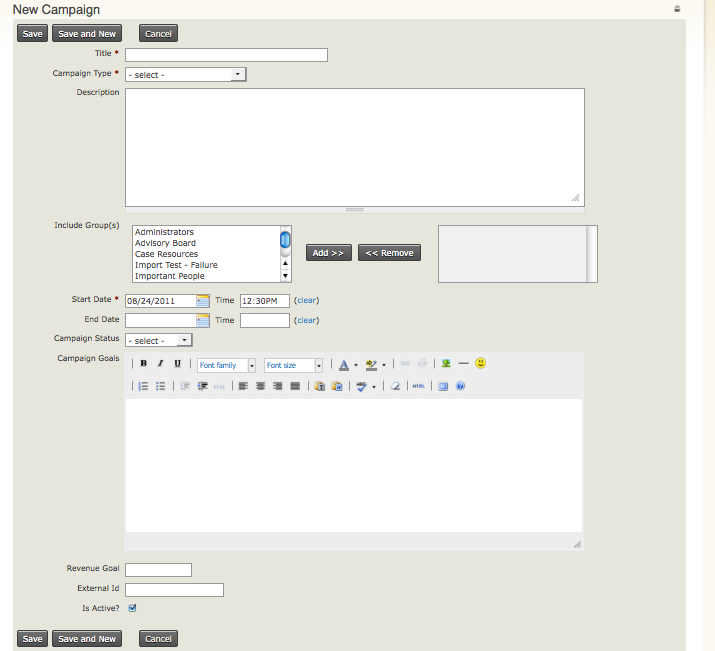
- Enter information about your campaign:
- Title (required): enter a unique name that describes your campaign. It's helpful to establish a naming convention for new campaigns so they alphabetize in drop-down lists automatically and are easy to sort through when associating and activity with the campaign.
- Campaign Type (required): select the type of campaign, e.g. Constituent Engagement. To add more options to the Campaign Type drop-down list, see the previous chapter on setting up CiviCampaign.
- Description:enter text that describes your campaign.
- Include group(s): if appropriate, select the group that contains the individuals you are targeting for this campaign. To find out more about creating groups, see the chapter on Tags and Groups.
- Start Date & Time (required): enter the start date and time of the campaign
- End Date & Time: enter the end date and time of the campaign. If these fields are empty, then the campaign will be considered ongoing.
- Campaign Status: select the status of the campaign, e.g. In Progress, Planned, etc. To add more options to the Campaign Status drop-down list, see the previous chapter on setting up CiviCampaign.
- Campaign Goals: enter text the describes the goals and/or objectives of your campaign. You may also want to describe the activities you plan on conducting to meet those goals.
- Revenue Goals:if applicable, enter a number that indicates the amount you plan to raise during your campaign.
- External ID: if you want to track the campaign ID of the campaign when it existed in another database, you can enter the ID number of your legacy campaign.
- Is Active?: check the box if the campaign is an active campaign. If the campaign is inactive, then uncheck the box.
Click Save, to save the campaign.
Targeting constituents: create a group
You may want to target a specific group of individuals for all campaign activities. This is done by creating a group to target these individuals. See the chapter Tags and Groups for more information about how to create a group.
Send a mass mailing
A mass mailing to your target audience can generate interest and participation, and also be used to call for donations.
- Create the email using CiviMail. See the Email section of this book to learn more about configuring and using CiviMail.
- Select the appropriate campaign from the drop-down list when setting up the mailing.
A Campaign Event
Events created using CiviEvent can be associated with a campaign. To find out more about configuring and using CiviEvent, see the Events section of this book.
- Create and configure the event.
- Select the appropriate campaign from the drop-down list when setting up a mailing for the event.
- Send a mass email using CiviMail to your target audience using a group or groups, and ask people to register for the event.
- Again, select the name of the campaign on the mailing set-up.
- Search for individuals who have indicated they want to register for the event.
Record Campaign Contributions
As contributions come in, either online or offline, they can be associated with a campaign; simply select the appropriate campaign from the drop-down menu when recording the contribution.
To find out more about configuring and using CiviContribute, see the Contributions section.
Record Event Participation
During and after an event, organizers can record who participated by either collecting sign-in sheets and entering the participants manually, or recording who participated directly online.
Have participants write their contact information on sign-in sheets when they arrive, or if you have an internet connection at the event venue you may be able to enter participants directly into the database.
To find out more about how to record participant information for an event, see the Events section.